


Optimal LinkedIn Profile Photo Size 2026
Published April 30, 2026
Your linkedin profile photo size should be a 400 x 400 pixel square image. That’s the official recommended size, but the full story is more complex because a technically correct upload can still look wrong once LinkedIn crops it into a circle.
That’s a common frustration. The file meets the spec, the image looks sharp on your laptop, and then the live profile photo chops off part of your hair, pushes your face too low, or makes the whole shot feel cramped on mobile.
The mistake isn’t usually the pixel size. It’s composition inside the crop.
A good LinkedIn headshot has to pass two tests at once. First, it has to meet LinkedIn’s file rules. Second, it has to survive the platform’s circular display across profile pages, search results, and phones. If you only optimize for the first, you’ll still end up with a photo that feels amateur.
LinkedIn Profile Photo Quick Reference Specs
If you just need the upload specs fast, use this reference and then stop before you upload to check your framing.
| Specification | Requirement |
|---|---|
| Recommended dimensions | 400 x 400 pixels |
| Minimum dimensions | 300 x 300 pixels |
| Aspect ratio | 1:1 square |
| Maximum file size | 8MB |
| Supported file formats | JPG, PNG, GIF |
These specs matter for different reasons. The dimension controls clarity. The square ratio prevents awkward stretching. The file limit keeps uploads accepted. The format affects how clean the final image looks after compression.
If you also manage branded visuals beyond your profile photo, this guide to current LinkedIn content sizes helps keep the rest of your LinkedIn assets consistent. For headshot-specific sizing questions, FaceJam also has a useful reference on the size of headshots.
Practical rule: Hit the official upload spec first, then judge the image by what stays visible inside the circle, not by what looks good in the original square file.
Understanding the Official LinkedIn Photo Specs
The official rules are simple, but each one solves a specific display problem. Treat them as design constraints, not admin details.
Why 400 x 400 works
LinkedIn officially recommends a 400 x 400 pixel profile photo with a strict 1:1 aspect ratio, allows files up to 8MB in JPG, PNG, or GIF, and notes that profiles without photos receive 21 times fewer views while those with professional photos get 14x more InMail responses according to LinkedIn image size guidance summarized here.
That single fact changes how I advise clients. Your profile photo isn’t decorative. It’s part of discoverability and response quality. If the image is weak, cropped badly, or absent, you’re making networking harder before anyone reads your headline.
The recommended size also gives you a clean baseline for display across desktop and mobile. Smaller files are more likely to look soft. Huge files can still upload, but they often create avoidable compression and cropping issues.
Why square matters more than people think
A 1:1 square isn't just a formatting preference. It gives you a predictable canvas. LinkedIn can place that canvas inside its circular frame without trying to rescue a tall portrait or wide horizontal shot.
When people upload a rectangular photo, one of two things usually happens:
- The crop gets aggressive: LinkedIn has to trim more image area to create the circular display.
- The face loses balance: You end up with too much forehead, not enough shoulders, or a chin pressed against the bottom edge.
- The preview lies: The image can look acceptable in one placement and cramped in another.
That’s why I rarely recommend uploading a straight export from a phone camera unless you’ve cropped it carefully first.
Picking the right file format
LinkedIn accepts JPG, PNG, and GIF. For headshots, PNG is usually the cleanest choice because it tends to retain detail better, especially around hairlines, collars, and edges against plain backgrounds.
JPG is still fine if the source image is strong and the file is saved well. GIF is supported, but for a professional headshot it’s rarely the best option. Keep the process boring. Clean crop, simple export, no novelty format.
The best LinkedIn photo files are usually the least dramatic ones. Sharp source image, square crop, restrained editing, and a format that preserves detail.
How LinkedIn Crops Your Photo on Different Devices
This is the part most guides skip, and it’s the reason people think LinkedIn “randomly” ruins their photo.
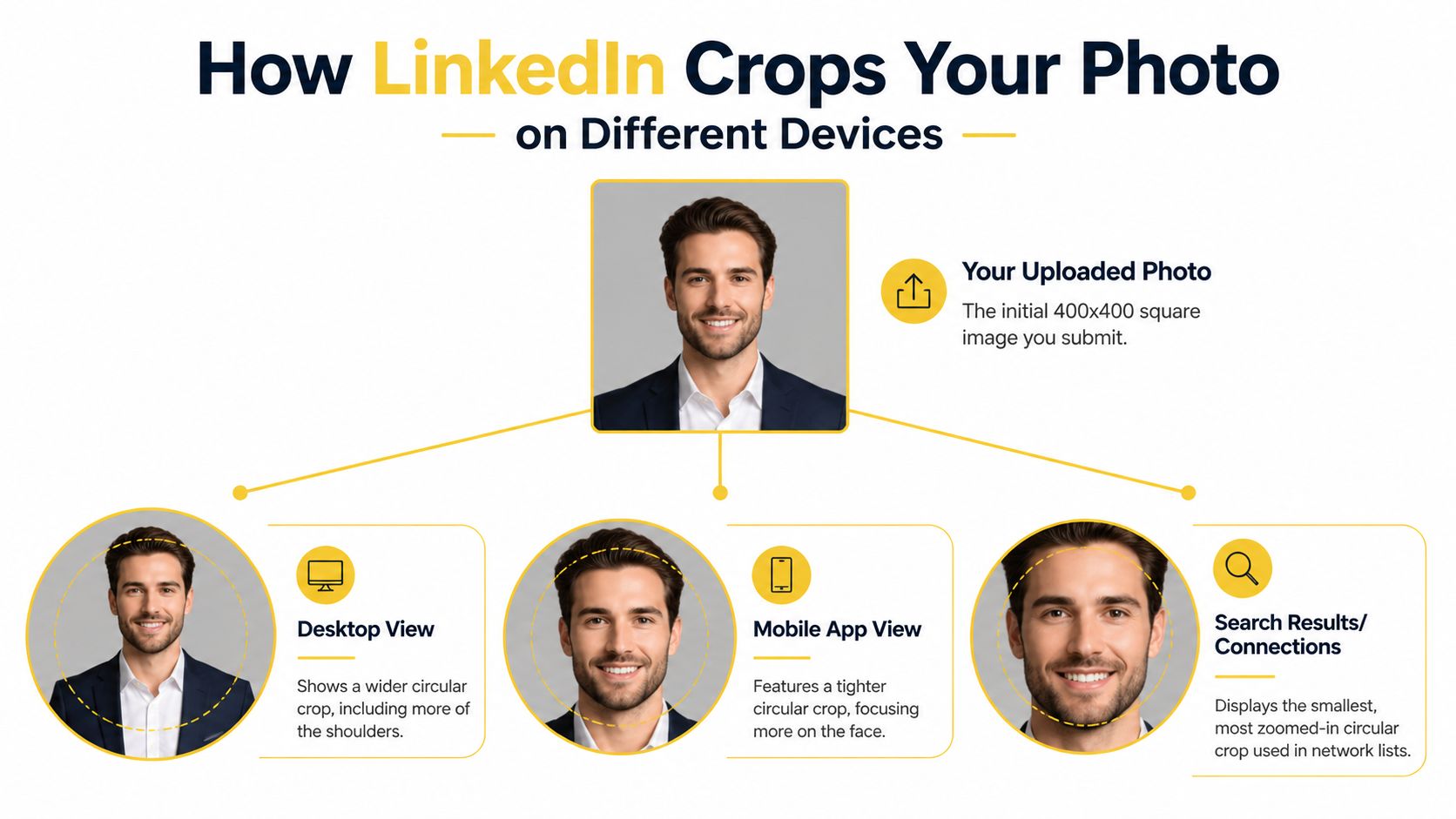
You upload a square. LinkedIn shows a circle.
That means the full image is never fully visible in the final profile display. LinkedIn applies a circular crop with a safe visible area of approximately 300 to 350 pixels in diameter, so the outer 25 to 50 pixels of a 400 x 400 image may get trimmed, especially on mobile. The same source notes that 28% of profile views occur on mobile and that mis-cropped images see 15% lower engagement, based on this LinkedIn size guide discussion.
The safe zone you should actually design for
If you remember one practical number from this article, make it this: compose your image as if only the central circle matters.
A useful working method is to imagine an invisible circle in the center of your square image. Your eyes, nose, mouth, and the main outline of your face should sit comfortably inside that circle. Hair volume at the edges, shoulders pushed too far outward, and accessories near the corners are the first things that disappear.
The safest framing usually looks like this:
- Face centered horizontally
- Eyes slightly above the midpoint
- Head and upper shoulders visible
- No important detail parked near the outer edge
- A little breathing room above the hairline
Why desktop and mobile don't feel the same
Desktop profile views often feel more forgiving. Mobile previews can feel tighter even when the file itself hasn’t changed. Search results and connection lists can crop even more aggressively because the displayed circle appears smaller and the visual tolerance for clutter drops fast.
That’s why a photo that looks “fine” in edit mode can still fail in real use. The live environment is different from the upload window.
A LinkedIn headshot should be judged in its smallest, tightest display, not in the editing screen where everything looks generous.
What works and what doesn't
Here’s the trade-off in plain terms:
| Works | Doesn't work |
|---|---|
| Centered head-and-shoulders crop | Full torso crop |
| Neutral edge space around the face | Face pressed near top or bottom |
| Simple background separation | Busy scene with objects near edges |
| Slightly looser square before upload | Over-zoomed selfie crop |
If your current photo looks oddly cropped, don’t just resize it. Recompose it with the circle in mind.
Photo Composition Tips for a Professional Look
The best LinkedIn photos feel natural, but they’re usually built on a few deliberate choices. You don’t need studio gear. You need restraint.
Frame the shot like a headshot, not a social post
For most professionals, a classic head-and-shoulders composition works best. It reads quickly at small sizes and still feels personal. If you crop too wide, your face becomes a tiny element in a circle. If you crop too tight, the image starts to feel tense and unflattering.
Use this checklist while framing:
- Keep your face as the clear focal point: Nothing in the background should compete.
- Show enough shoulder line: It gives the image structure and helps it feel intentional.
- Leave modest space above the head: Too much empty space wastes the crop.
- Aim for direct, calm eye contact: It tends to read better than dramatic angles on a professional platform.
For a deeper brand perspective, Blonde Waterfall's branding insights) are useful because they connect visual choices to trust and narrative, not just polish. If you want more hands-on examples specific to profile images, FaceJam’s guide to LinkedIn profile photo tips is also worth reviewing.
Light the face cleanly
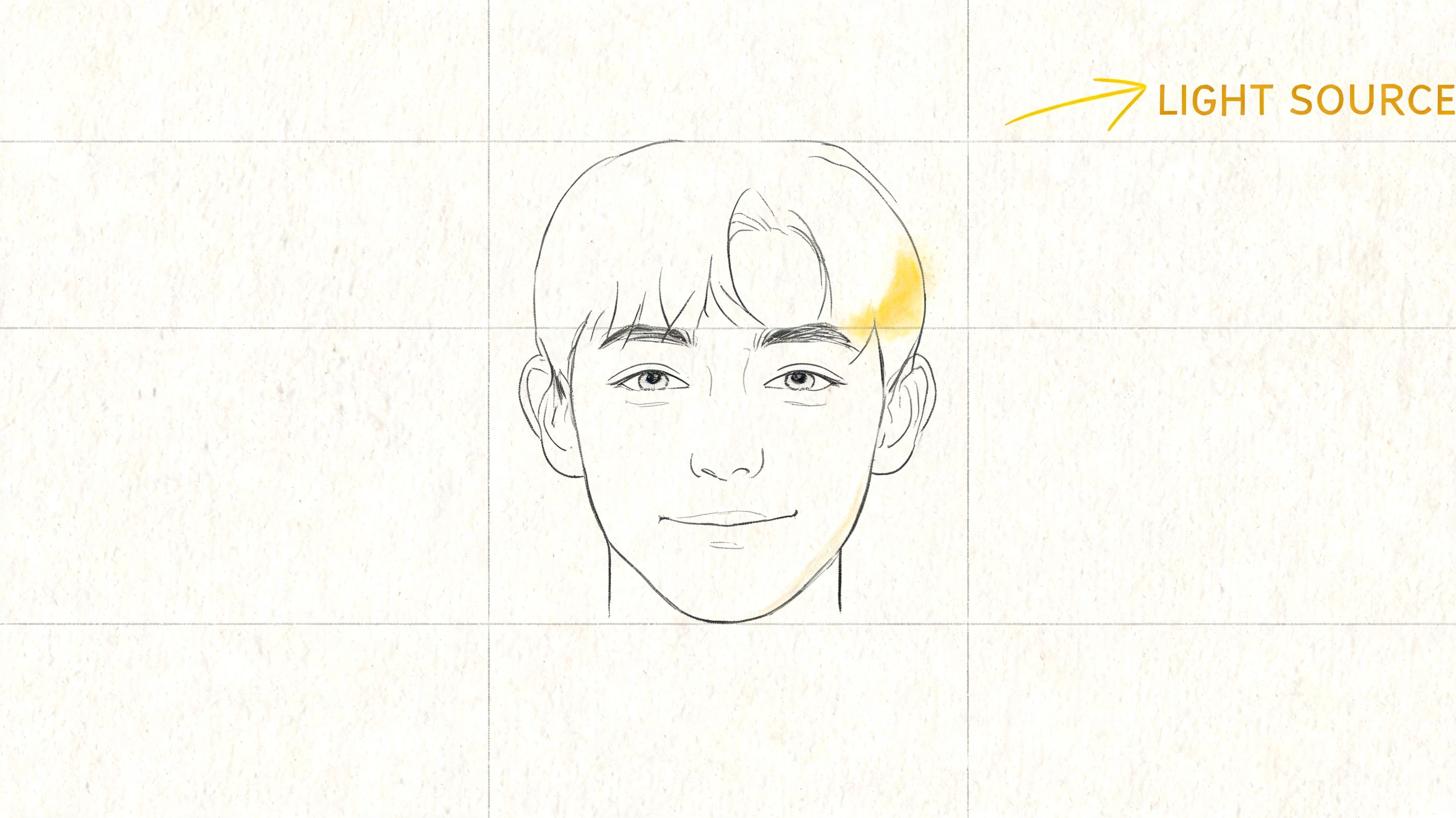
The easiest lighting fix is still the best one. Stand facing a window and let soft natural light hit your face evenly. That reduces harsh shadows under the eyes and keeps your skin tone looking believable.
Avoid overhead room lighting when possible. It creates unhelpful shadowing and makes even a good camera produce a tired-looking result.
A short walkthrough helps if you're adjusting your setup yourself:
Background, wardrobe, and expression
This part is less about strict rules and more about reducing friction.
A plain wall, soft office backdrop, or lightly blurred neutral setting usually works. Loud patterns, clutter, plants growing out of your shoulder, or a cropped crowd scene don't. Clothing should match your professional context without feeling costume-like. Wear what a strong version of you would wear to meet a client, recruiter, or hiring manager.
Expression matters even more than people think. You don't need a giant smile. You need an expression that suggests you’re present, approachable, and competent.
If your photo makes you look harder to talk to than you are in real life, it needs a retake.
Common LinkedIn Photo Upload Problems and Fixes
Most upload problems fall into a few predictable categories. The fix is usually simple once you identify the actual cause.
The photo looks blurry
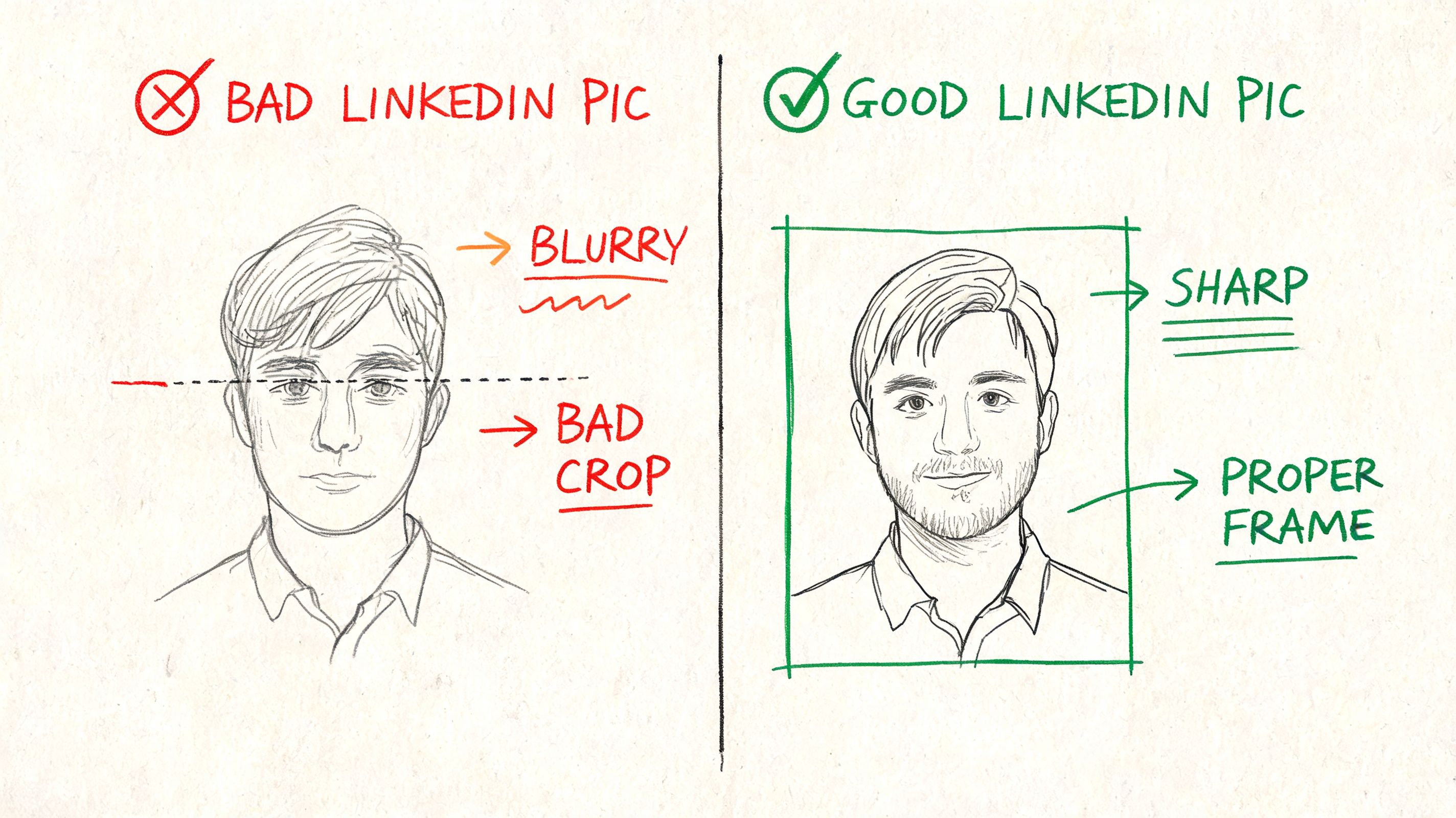
Blurriness usually starts before the upload. Common causes include a weak source image, an overly compressed screenshot, or a file that was cropped repeatedly until detail broke down.
Try this:
- Start with the original photo file, not a screenshot.
- Crop once to a square.
- Export cleanly in PNG or a high-quality JPG.
- Upload and inspect the live profile on both desktop and phone.
If the original image is soft, resizing it won’t rescue it. You need a sharper source.
The image looks stretched or squashed
That’s an aspect ratio problem. Somewhere in the workflow, the image got forced into a square instead of being properly cropped to a square.
Use an editor that lets you set a 1:1 crop first. Apple Photos, Preview, Canva, Figma, Photoshop, and Photopea can all handle this easily. Never drag the image corners until it “looks square.” Crop it with a locked ratio.
Important parts are cut off
This is the safe-zone issue, not a file-size issue. The square may be correct, but the composition is wrong for LinkedIn’s circular display.
Use this diagnosis:
- Hair clipped at top: Lower the crop slightly or add more headroom.
- Shoulders vanish awkwardly: Zoom out a touch before exporting the square.
- Face feels off-center: Reposition the face in the middle of the square, not just the middle of the rectangular original.
- Earrings, jacket edges, or curls disappear: Keep visual details farther from the outer edge.
The file won't upload cleanly
If LinkedIn throws an error or the image degrades after upload, simplify the file.
A practical reset looks like this:
| Problem | Likely cause | Fix |
|---|---|---|
| Upload rejected | File is too large or oddly exported | Re-save under 8MB |
| Weird color or edge artifacts | Overprocessed file | Export a fresh PNG or clean JPG |
| Crop tool behaves oddly | Non-square source | Pre-crop before uploading |
| Final image looks rough | Too many edits and re-saves | Return to original and export once |
One useful habit is to do all edits in one tool, then export once. Every extra save increases the chance of visible quality loss.
Your Quick Checklist for a Perfect Photo Upload
Use this before you hit save. It catches almost every issue that makes a LinkedIn photo look off.
Final pre-upload check
- Confirm the canvas is 400 x 400 pixels: If it’s larger, make sure the crop still reads cleanly when reduced.
- Make sure the image is square: A true 1:1 crop avoids distortion problems.
- Check the face placement inside the safe zone: Keep all essential facial details in the center area of the image.
- Leave a little room around the head and shoulders: Tight crops often fail once LinkedIn applies its circular mask.
- Choose a clean export format: PNG is often the safest choice for preserving detail.
- Keep the file under 8MB: Large files create preventable upload friction.
- Review the expression and background: The image should feel current, calm, and credible.
- Preview after upload on desktop and mobile: The mobile view is where framing issues usually reveal themselves.
- Replace, don’t over-edit: If the source image is weak, reshooting is often faster than trying to fix everything in software.
The fastest quality test
Open your profile photo small. If your face is easy to recognize instantly, the image is doing its job. If your first thought is about cropping, clutter, or awkward spacing, revise it.
A LinkedIn profile photo doesn’t need to impress as a portrait. It needs to read clearly in a tiny circle.
Generate a Perfect Headshot with FaceJam
Some people want to tweak a photo manually. Others just want the result without wrestling with crop tools, export settings, or twenty near-identical retakes.
That’s where an AI headshot workflow can help, especially if you need a polished image quickly for LinkedIn, a resume, a company directory, or outbound networking.
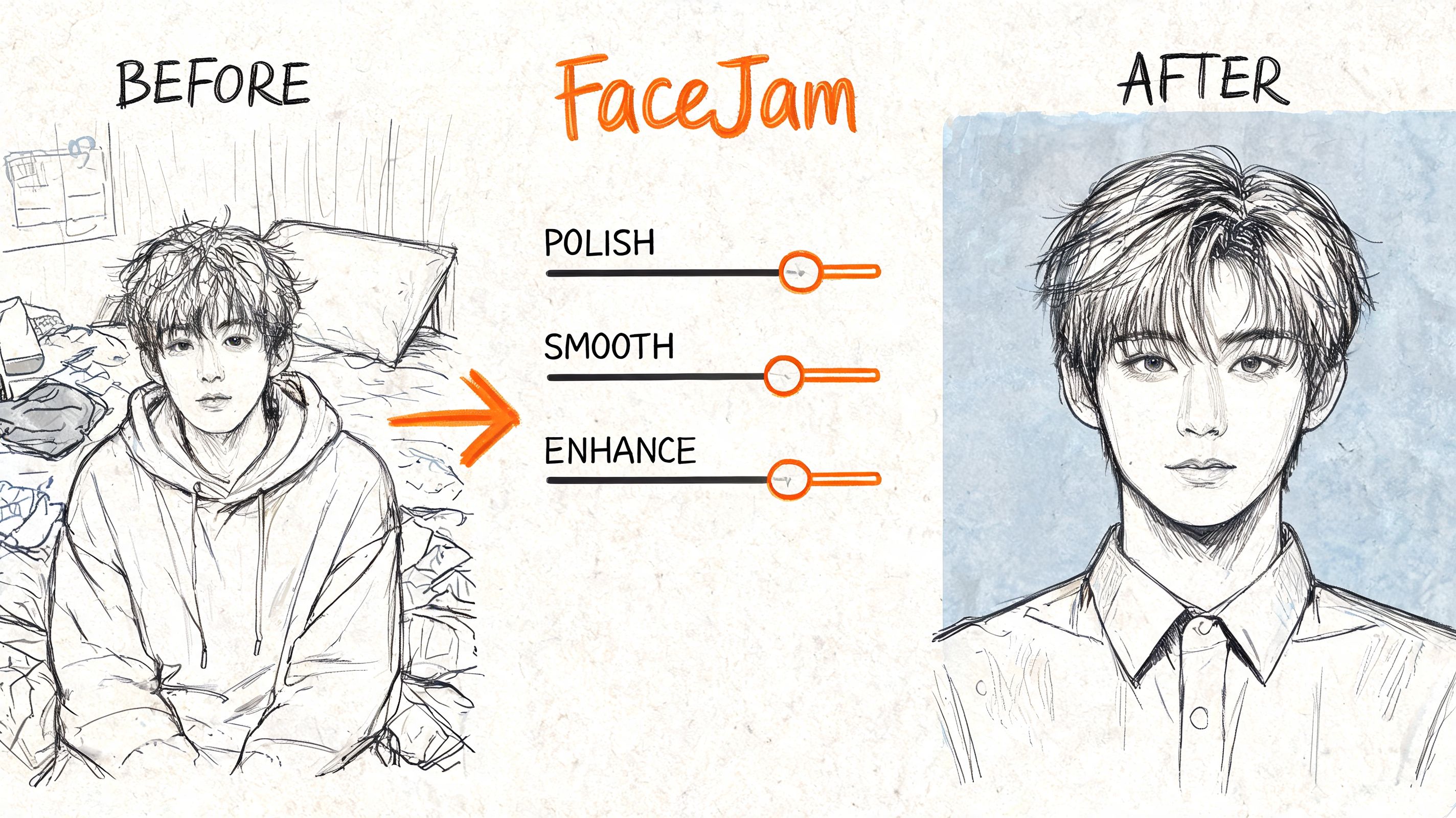
FaceJam is built for that use case. It turns everyday selfies into professional-grade headshots, gives you a wide range of styles and looks, and removes the usual friction of booking a photographer or setting up your own shoot. For people updating both their profile image and their broader LinkedIn presence, it pairs well with tools that automate LinkedIn content publishing, so your profile and your posting rhythm improve together.
Why this solves the usual LinkedIn photo problems
The biggest advantage isn’t just convenience. It’s consistency.
A purpose-built headshot workflow helps you avoid the most common issues covered above:
- Weak source image problems: You’re not relying on a random old crop from your camera roll.
- Inconsistent composition: The output is designed to look like a professional headshot, not a salvaged casual photo.
- Time loss in editing apps: You skip a lot of manual trial and error.
- Brand mismatch: You can choose a look that fits your field, whether that’s corporate, startup, creative, or sales.
If you want to see the platform directly, visit FaceJam.
Best use case
FaceJam makes the most sense when your current LinkedIn image is outdated, awkwardly cropped, or not strong enough for job search, recruiting, business development, or client-facing work. It’s also a practical option for teams that want consistent headshots without coordinating a full photo day.
Frequently Asked Questions About LinkedIn Photos
Can I use a logo instead of my face
For a personal LinkedIn profile, that’s usually a bad choice. People want to know who they’re connecting with, hiring, messaging, or evaluating. A real photo creates recognition and lowers the sense of distance. Logos belong on company pages, not personal profiles.
How often should I update my LinkedIn photo
Update it when it stops looking like you or when your professional brand changes. A move into leadership, a shift into a more client-facing role, a major style change, or a return to active job searching are all good reasons to refresh it.
Don’t update it constantly for novelty. Update it when the image no longer represents how you show up in professional life.
Can I use a cropped group photo
You can, but it often looks obvious. Group photos usually leave you with bad lighting, odd shoulder angles, partial arms at the frame edge, or resolution loss after the crop. A dedicated headshot almost always reads better.
Should my LinkedIn photo match my resume photo
It doesn’t have to be the same file, but it should feel like the same person and same professional identity. If your resume uses a polished portrait and LinkedIn uses a casual vacation crop, the inconsistency creates friction.
Does the background banner use the same size rules
No. Your background banner is a separate asset with different dimensions and a different display behavior. Don’t assume that what works for the profile photo applies to the banner. Treat them as two different design surfaces.
Is heavy retouching a good idea
Usually not. A LinkedIn photo should look like your best real-world self, not an over-smoothed studio composite. If someone meets you after seeing your profile, recognition matters more than visual perfection.
What if my current photo is technically correct but still looks bad
That usually means the file spec is fine and the composition is wrong. Revisit face placement, headroom, shoulder framing, and background simplicity. On LinkedIn, cropping judgment matters as much as image quality.
If you want a faster way to get a polished, upload-ready LinkedIn headshot without booking a photographer, FaceJam is a practical option. It turns ordinary selfies into professional headshots suited for LinkedIn, resumes, job applications, and team directories, which makes it useful when your current photo is outdated, poorly cropped, or just not helping you make the right first impression.


