


How to Make iPhone Pictures Look Professional in 2026
Published May 2, 2026
You’re probably here because you’ve taken an iPhone photo that should have looked great, but didn’t. The scene looked good in real life. The person looked good in front of you. Then the image came out flat, harsh, cluttered, or unmistakably “phone-like.”
That gap usually isn’t about needing more gear. It’s about process.
If you want to learn how to make iphone pictures look professional, stop looking for a magic filter. Professional-looking images come from a repeatable workflow: prepare the shot, control the camera, use light well, edit with restraint, and know when to stop fighting a difficult use case on your own.
The Professional Mindset Starts Before the Shot
A professional-looking iPhone photo is usually decided before the Camera app opens.
The scene is set, the background is doing its job, the light makes sense, and the subject fits the final use. That is the difference between a photo that edits cleanly and one that falls apart the moment you try to fix it.
Start with the physical basics. Clean the lens with a microfiber cloth or a soft cotton shirt, then check it again if you have been handling the phone for a few minutes. Fingerprints scatter light, soften detail, and make highlights flare in a way that looks cheap. Portraits suffer first. Product shots do too.
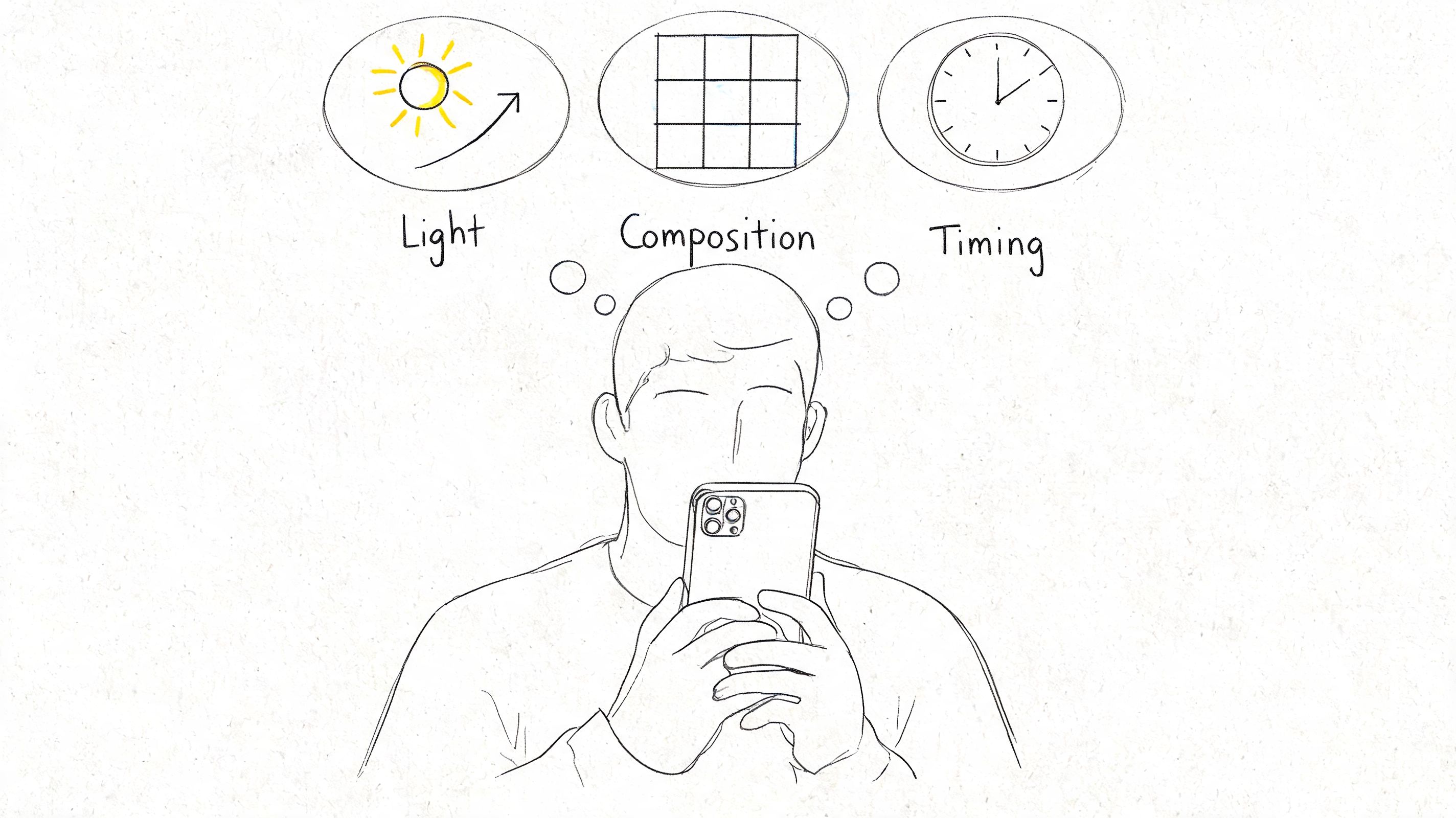
Then define the assignment.
A LinkedIn headshot needs competence and approachability. A product photo needs clean shape, accurate color, and no distractions around the edges. A brand photo for Instagram can be looser, but the viewer still needs to know where to look within a second. If you do not make that call early, you end up shooting vague images and trying to solve the confusion in editing.
I use four questions before every serious iPhone shoot:
- What is this photo for? Headshot, listing image, social post, website banner, team profile.
- What must the viewer notice first? Eyes, product silhouette, texture, logo, gesture.
- What hurts the frame? Clutter, mixed lighting, bright objects in the background, awkward lines.
- How will it be cropped later? Vertical, square, horizontal, profile circle.
Crop matters more than people expect. A headshot framed loosely for a website banner may fall apart inside a profile circle. A product shot that looks balanced horizontally can feel empty as a vertical social post.
Good planning also helps with gear decisions. If you are shooting on an older device, you can still get excellent results by controlling the scene well, and buying one of the best refurbished iPhones often makes more sense than chasing the newest model at full price.
Next, build the frame before you raise the phone. Move the subject away from the wall. Remove the extra chair. Straighten the shirt collar. Turn off the overhead lamp if it adds a green or orange cast. Shift a product two inches if the background line cuts through it awkwardly. Small corrections at this stage save far more time than any edit.
A simple pre-shot routine keeps this tight:
- Clean the lens and check for smears in bright light.
- Scan the edges of the frame for cords, bins, chair legs, and bright distractions.
- Choose the orientation early based on where the image will be used.
- Pick one dominant light source so skin tones and whites stay consistent.
- Take a test frame and inspect it before shooting a full set.
Professional photos usually feel quieter because every element has been chosen. The background supports the subject. The colors do not compete. The viewer does not have to search for the point of the image.
That quiet look is the key mindset shift. Stop asking how to make the photo look expensive. Ask what can be removed, moved, or simplified so the subject reads clearly.
Unlock Your iPhone Camera's Hidden Power
The iPhone camera rewards people who set it up before they shoot. A few controls inside the native Camera app change how your files look and how much fixing you have to do later.
Get those controls right once, and the phone becomes far more predictable.
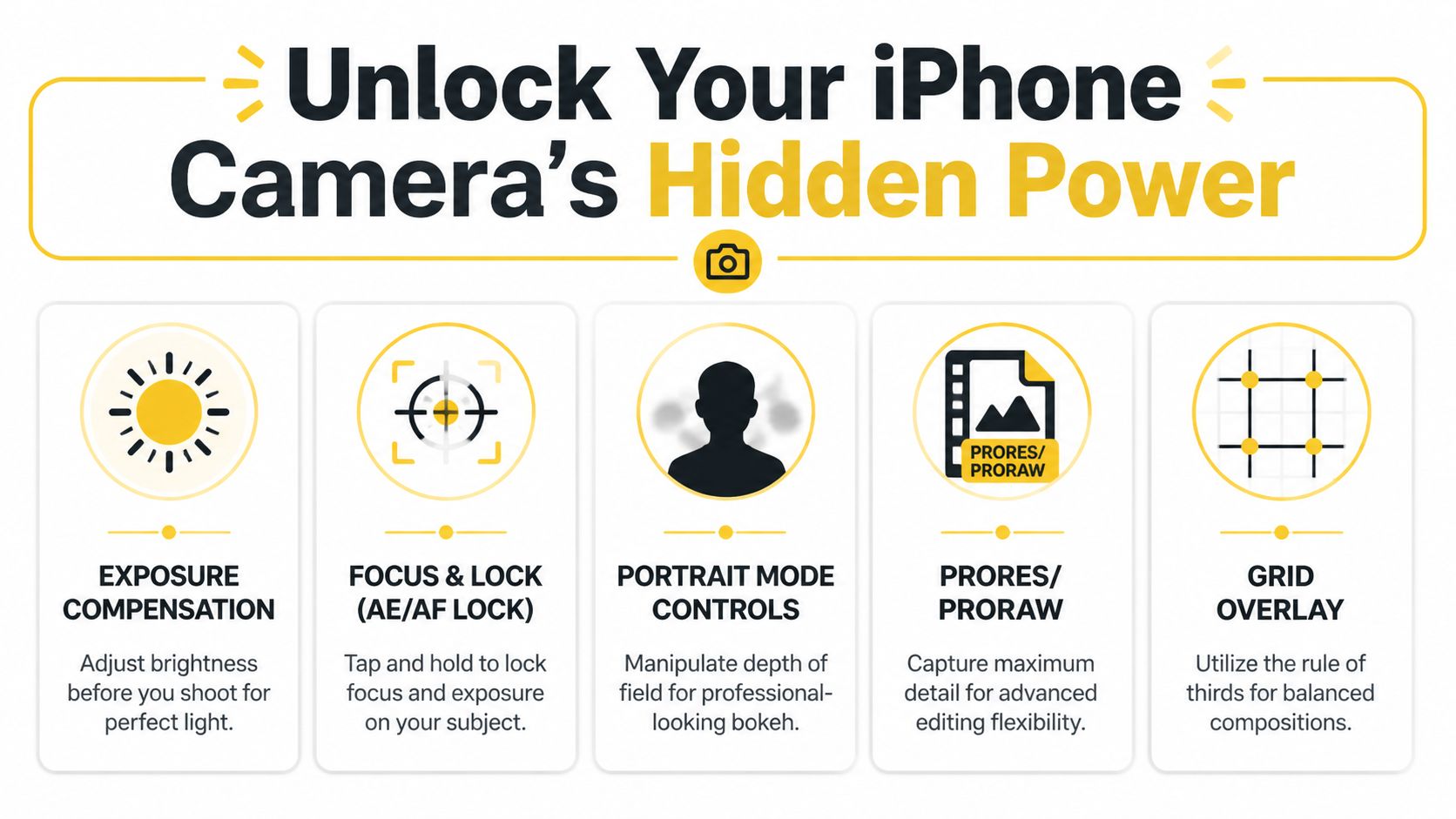
Use the grid as a spacing tool
Turn on Grid in Settings > Camera. I use it less for strict Rule of Thirds shooting and more for spacing, alignment, and edge control.
That distinction matters. Grid lines help keep a horizon level, stop a head from drifting too close to the top of frame, and make product shots look cleaner because verticals and table edges stay consistent. Faces, hands, and objects usually look more deliberate when they sit slightly off-center with breathing room around them.
For a stronger overall shooting process, this guide to taking professional pictures with your iPhone pairs well with the camera setup choices here.
Lock focus and exposure before the moment peaks
AE/AF Lock is the control I use most. Tap and hold on the subject until the yellow box locks, then slide up or down to brighten or darken the frame.
This is how you stop the iPhone from changing its mind every time someone shifts an inch or a bright shirt enters the frame. For skin, I usually set exposure a touch darker than the phone wants. The default iPhone look often pushes brightness too far and strips shape out of faces.
AE/AF Lock helps most in a few specific situations:
- Faces near bright windows
- Products on white or glossy surfaces
- Flat lays where one darker object confuses the meter
- Any series where you need multiple frames to match
Consistency looks professional. Auto exposure drift does not.
Use Portrait mode selectively
Portrait mode can look polished, or it can look fake fast. The difference is usually the background, the edge detail, and how aggressive the blur is.
It works well when the subject stands clear of the background, hair is clearly defined, and the scene already has some separation. It falls apart with messy backgrounds, transparent objects, flyaway hair, and strong backlight around the head. In those cases, the depth effect often clips edges and gives the cutout look people associate with cheap edits.
Keep the blur moderate. A believable background blur reads as camera depth. Maximum blur reads as software.
For headshots, this is also the point where a dedicated tool can save time. If the goal is a polished profile photo rather than a full custom shoot, FaceJam handles one of the hardest mobile-photo jobs without forcing you to fight portrait edges by hand.
Turn on ProRAW for files you plan to edit
For serious edits, Apple ProRAW gives you a better starting file than a standard JPEG or HEIC. You get more room to adjust white balance, pull back bright areas, and open shadows without the image falling apart as quickly.
The trade-off is simple. ProRAW files take more storage, slow down long shooting sessions, and make no sense for throwaway snapshots. I turn it on for headshots, brand portraits, product photos, and high-contrast scenes where I already know I will edit carefully.
Set it up in Settings > Camera > Formats. Enable Apple ProRAW and Resolution Control, then tap the RAW icon in the Camera app before shooting.
If you are working with an older model, camera features vary a lot by device. Portrait rendering, lens quality, and ProRAW support are not the same across the range, so this guide to best refurbished iPhones is worth checking before you upgrade.
One practical rule helps here. Use the simplest file that still gives you enough editing room. That keeps your workflow fast and your camera roll manageable.
Mastering Light and Composition
A strong iPhone photo often gets decided before the shutter moves. Walk into a nice room at noon, put someone under ceiling lights, and the result still looks cheap. Put the same person next to a shaded window with a clean background, and the phone suddenly has much less to fight.
Light sets the quality floor.
The easiest repeatable setup is window light from the side. Place your subject close enough to catch soft directional light, then turn their body slightly so the face has shape instead of flat brightness. I usually avoid direct sun on skin unless I want a hard editorial look, because the iPhone can clip bright areas fast and harsh shadows age a portrait in the wrong way.
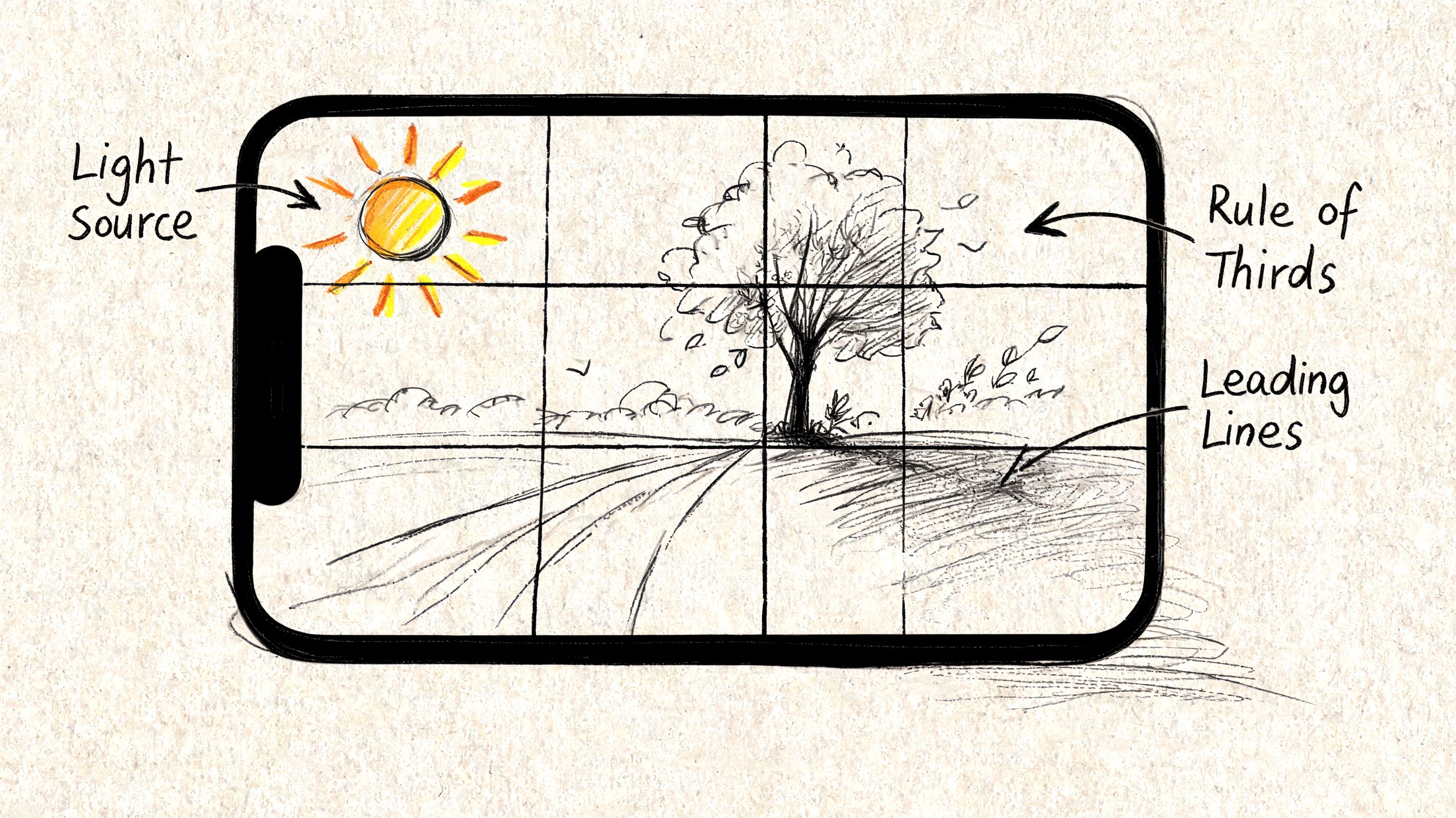
Work with light that wraps
Good portrait light should wrap across the face, not hit it like a spotlight. A large window does this well because the light source is broad and gradual. One cheek catches the highlight, the far side falls off gently, and the eyes keep detail.
Small fixes matter here. If shadows look too heavy, bounce a little light back with a white card, a bedsheet, a wall, or a laptop showing a blank white screen. If the face looks washed out, step the subject slightly away from the window or rotate them a few degrees off the light. Those tiny adjustments change the photo more than most edits later.
Professional-looking light is shaped light. Brightness alone does not make an image look polished.
Avoid scenes that create extra problems
Some setups cost too much in cleanup time and still rarely look right.
I avoid:
- Overhead room lights that create mixed color on skin and deep shadows under the eyes
- Direct midday sun that produces hard edges, squinting, and blown highlights
- Busy backgrounds too close behind the subject that kill separation
- Patchy light from blinds or tree leaves unless the pattern is the whole point of the shot
This is a workflow decision as much as an artistic one. Easier light gives cleaner skin, more believable color, and less rescue work in editing.
Composition should feel intentional
Once the light is working, start cleaning the frame. Check the edges first. Bright objects, half-cut furniture, tangled cables, and random doorframes pull attention away from the subject faster than people realize.
The grid helps, but composition gets better when you build depth on purpose. Use lines that point inward, place the subject so the background has breathing room, and leave negative space where it helps the image feel calm rather than empty.
| Technique | What it does | Where it works |
|---|---|---|
| Leading lines | Pulls the eye toward the subject | Hallways, streets, desks, tabletops |
| Natural framing | Adds focus without clutter | Doorways, windows, shelves, plants |
| Depth layers | Makes phone photos feel less flat | Portraits, interiors, café scenes |
| Negative space | Gives the subject room and clarity | Headshots, product photos, branding images |
A desk portrait is a good example. Put the subject near window light, keep the background separated instead of pressed right behind them, use the desk edge or wall lines to guide the eye inward, and leave a little space in the direction they are facing. The frame reads as deliberate.
For more setup examples and framing ideas, this guide on how to take professional pictures is a useful companion.
Portraits need believable depth
Portrait mode works best when the scene gives it clean information. Keep some distance between subject and background, avoid hair merging into dark clutter, and choose an angle that looks natural for the face. Eye-level or just above usually feels more professional than a high selfie angle.
The goal is believable separation, not maximum blur. Strong portraits usually have three things: clear catchlights in the eyes, enough background softness to isolate the subject, and enough real-world context that the image still feels grounded.
That trade-off matters. Push blur too far and the photo starts to look synthetic. Keep it moderate and the iPhone image holds together much better.
A Professional Editing Workflow on Your iPhone
Editing is where many promising iPhone photos go off the rails. People either do too little and leave the image flat, or do too much and make it look brittle, oversharpened, and artificial.
A professional workflow is calmer than that. Make fewer changes, but make them in the right order.
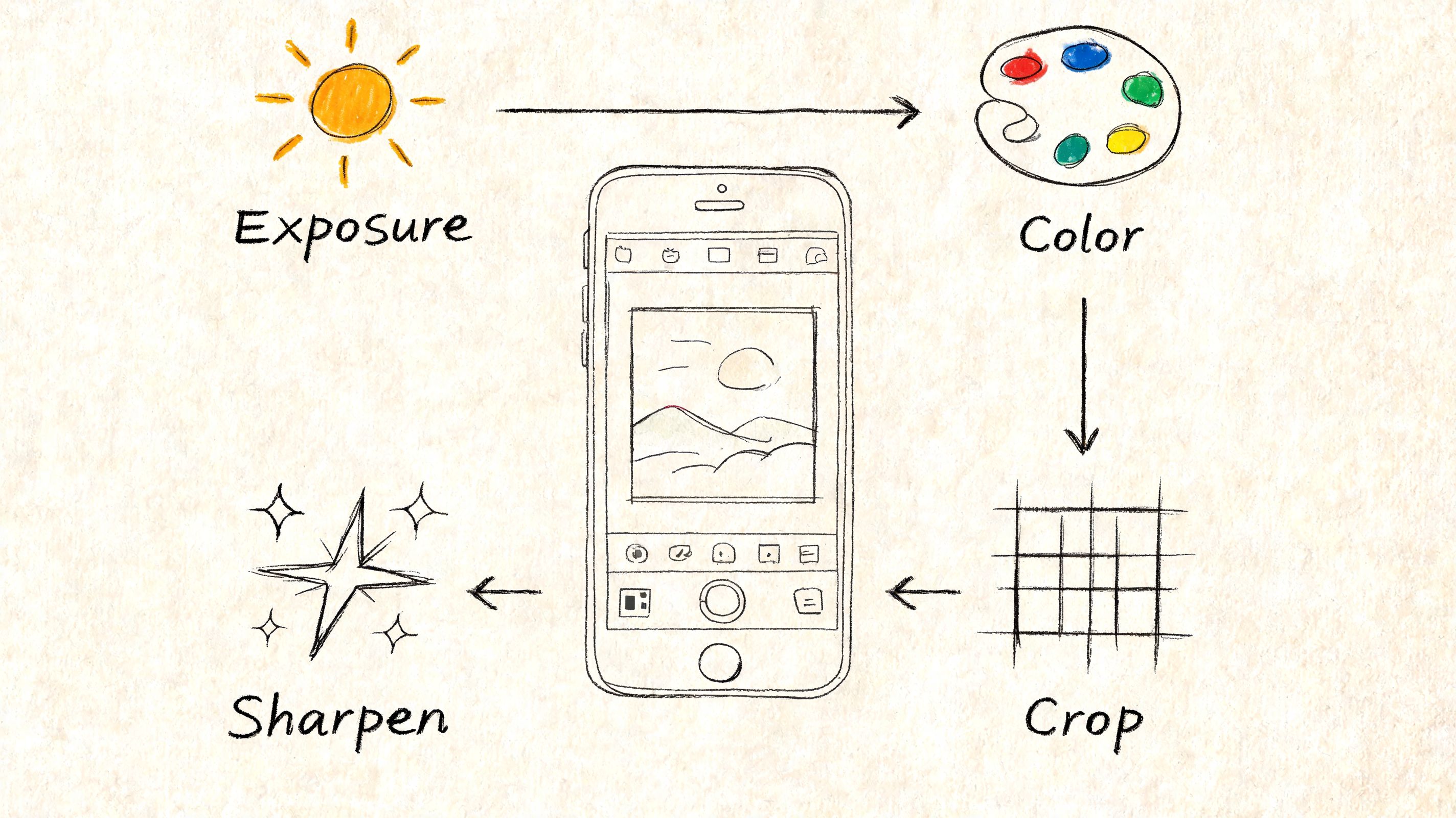
Start in the Photos app
You don’t need to open Lightroom for every image. Start in Apple Photos and do the structural fixes first.
That usually means:
- Crop for intention. Remove dead space and distractions at the frame edge.
- Straighten the image. Crooked horizons and leaning verticals make photos feel careless.
- Set overall brightness so the image reads clearly without looking washed out.
- Adjust contrast carefully to restore shape.
- Check highlights and shadows before touching color.
Most weak edits fail because people jump straight to saturation or filters. Basic tonal balance matters more.
Use Lightroom Mobile for finer control
When the image matters, move to Lightroom Mobile, where ProRAW files really earn their keep because the extra data gives you room to recover detail without the image falling apart.
My order stays consistent:
Correct tone first
Fix exposure before color. If the tonal structure is wrong, color edits won’t save it.
A good sequence:
- Exposure for overall brightness
- Contrast for shape
- Highlights to recover bright areas
- Shadows to open dark regions
- Whites and blacks to set the endpoints
If the image starts looking crunchy, back off. A polished edit usually has cleaner transitions than an aggressive one.
The edit should make the subject look clearer, not more edited.
Then adjust color
Once tone is stable, correct the color cast.
Indoor photos often drift too warm or too green. Window-lit portraits can go cool if the surroundings are blue. Products can pick up reflected color from tables or walls.
Adjust:
- Temperature to neutralize the overall warmth or coolness
- Tint if skin looks too green or magenta
- Vibrance before saturation, because it’s usually gentler
- Color mix only if a specific color is distracting
This is also where restraint matters most. Good color doesn’t announce itself.
A practical resource if you want to compare editing options is this guide to a professional photo editing app.
Here’s a video walkthrough that pairs well with the workflow above:
Handle detail with a light touch
The iPhone already applies a lot of processing before you ever touch the file. That means sharpening is where many edits become obviously “mobile.”
Use detail controls carefully:
- Sharpening in small amounts
- Noise reduction only when needed
- Texture or clarity very sparingly on faces
- Vignette only if it supports the subject, not to fake drama
For portraits, I avoid trying to erase every line or pore. Skin without texture looks synthetic fast. The better move is to improve light, reduce distracting color casts, and leave enough natural detail that the face still looks like a person.
Export for the final use, not for your archive
The last step is often ignored, but it affects how professional the photo looks when shared.
Use this simple export logic:
- LinkedIn, resumes, websites: export a clean, reasonably sized file with accurate color and no heavy compression.
- Print use: keep the highest quality version.
- Messaging apps: expect compression, so start with the strongest version possible.
- Team files: use consistent crops and naming so every image feels part of the same system.
If you shot in HEIF or ProRAW, keep the original as your master. Export copies for use. That way you can revisit the edit later without degrading the file.
The Smart Shortcut to Perfect Professional Headshots
Most of this article is about doing things well with the iPhone you already have. That works for a lot of situations.
But headshots are where DIY breaks down most often.
People struggle to hold a natural expression, get flattering light, avoid the selfie feel, manage wardrobe, and keep the background clean. Teams have an even harder problem. One person shoots by a window, another under kitchen lights, another against a yellow wall, and suddenly the company directory looks inconsistent.
That isn’t a small issue. Coordinating consistent headshots for remote teams is a major challenge, with 60% of DIY attempts failing due to inconsistent lighting and poses, and uniform headshots lift corporate directory click-throughs by 35% according to Apple-support-linked guidance on team photo consistency.
The problem isn’t just quality
For a single person, trial and error is annoying. For a team, it becomes operational.
HR and People Ops teams don’t just need “nice photos.” They need photos that match. Similar lighting. Similar framing. Similar polish. Similar level of formality. Most general iPhone photography advice doesn’t solve that batch consistency problem.
That’s why a specialized workflow makes sense for headshots in a way it might not for everyday photos.
When a dedicated tool makes more sense
If your goal is a polished headshot for LinkedIn, a resume, a founder bio, a sales page, or a team directory, using a targeted solution can be more efficient than repeatedly trying to build a studio look yourself.
One option is how to get professional headshots, which explains the process around FaceJam, an AI service that turns selfies into professional-grade headshots in minutes. The practical use case is straightforward: take a few clean selfies using the lighting and framing habits from this guide, upload them, and generate consistent portraits in different backgrounds, poses, and business styles without booking a photographer.
That doesn’t replace learning how to shoot well. It builds on it.
What still matters if you use an AI headshot workflow
Even with a dedicated headshot tool, the input photos matter. Better source images produce better results.
Use these rules before you upload:
- Use clean, sharp selfies taken in even light
- Avoid harsh shadows across the face
- Keep the background simple
- Wear what matches your professional use case
- Give the camera a natural expression, not a forced smile or exaggerated pose
Think of it this way. The iPhone is still your capture device. The difference is that you’re no longer relying on one perfect self-timer frame taken under less-than-ideal conditions.
For job seekers, founders, real estate agents, and distributed teams, that shortcut can be more practical than trying to build a repeatable portrait setup from scratch every time.
If you need polished headshots more than general photography skills, FaceJam is the direct route. Upload a few strong selfies, choose the look you need, and generate professional portraits for LinkedIn, resumes, company directories, and personal branding without scheduling a traditional shoot.


